How do I change or retrieve a forgotten password for ITS cameras?
This article discusses how to change your GovComm ITS camera password via the web interface.
Product applicability
The following products are discussed in this article:
- ITS Cameras:
- GC-ICPO-S Series
- GC-IL-S Series
Please see the instructions below for changing your password or retrieving a forgotten password:
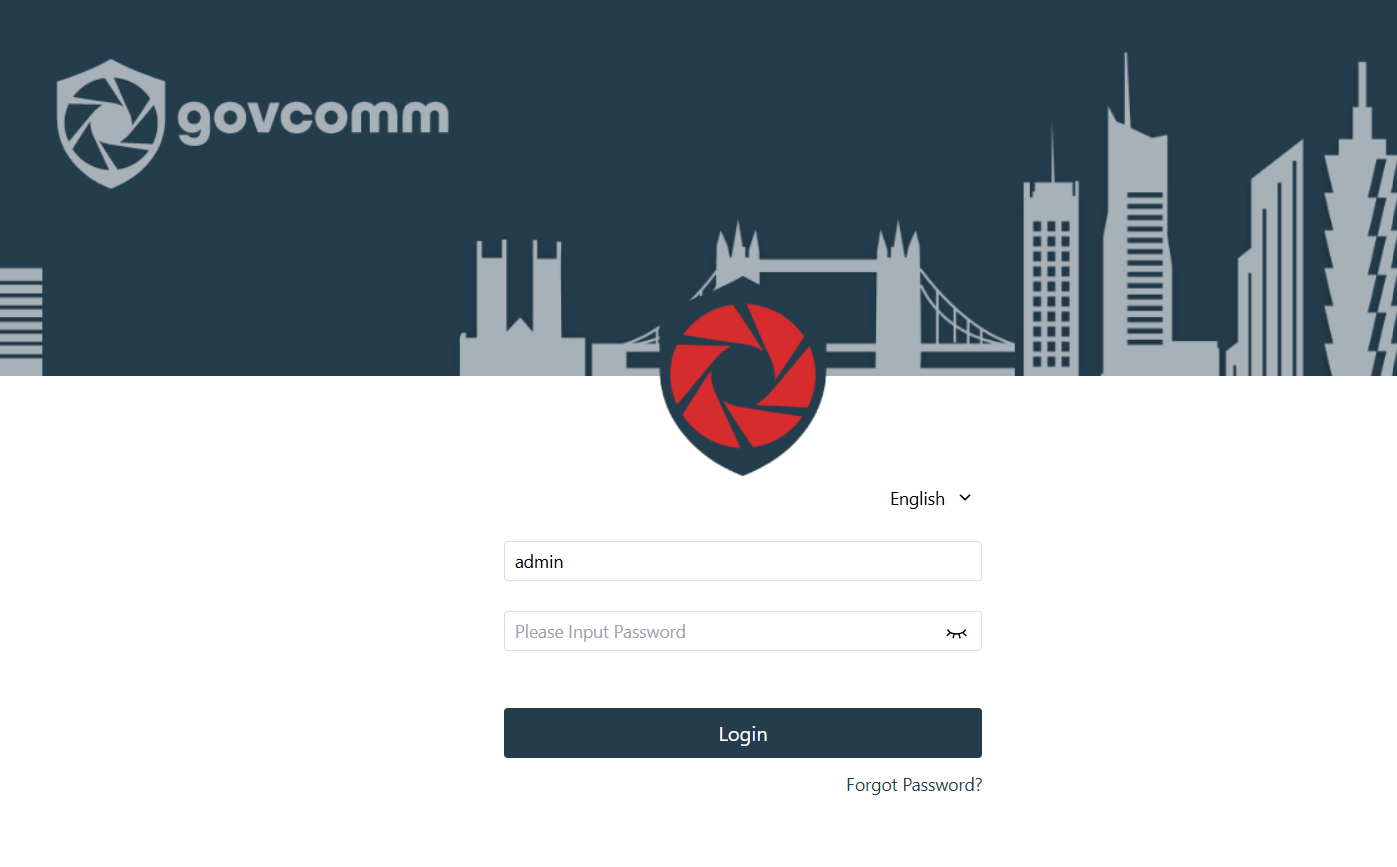
Default Login Credentials
- Username: admin
- Password: GovComm1
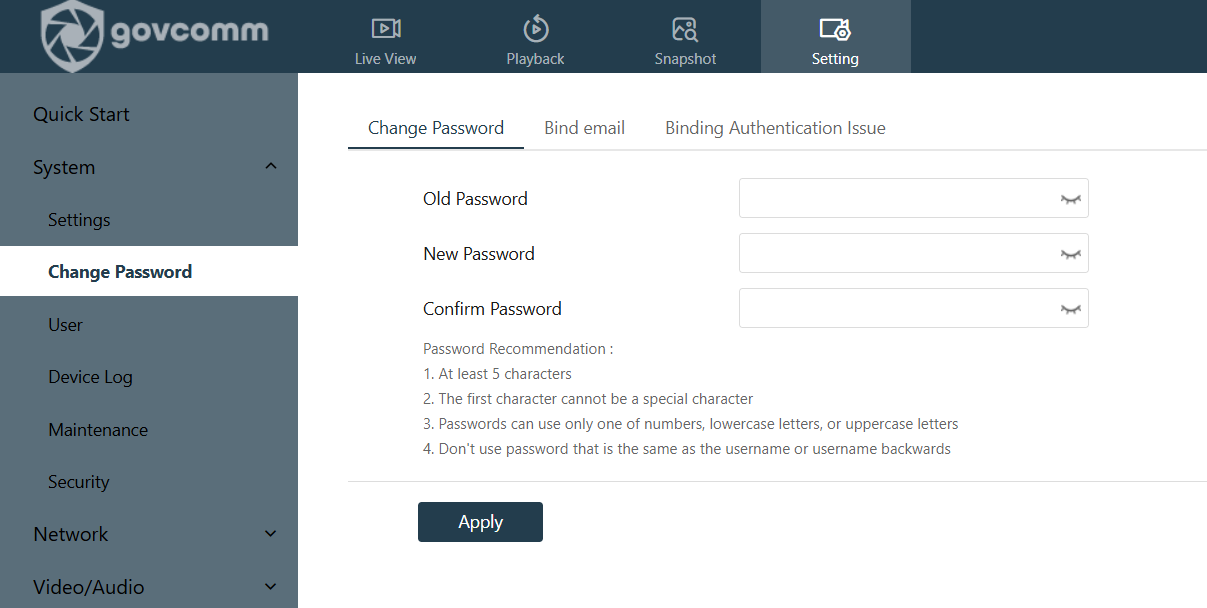
Change Password (when logged in)
- Log into the camera using the default or current credentials.
- Navigate to Settings → System → Change Password.
- Follow the on-screen instructions to create a new password.
Forgot Password (when logged out)
If you are unable to log in because you have forgotten your password, there are three methods available to retrieve or reset your password.
Choose one of the options available
- Security questions
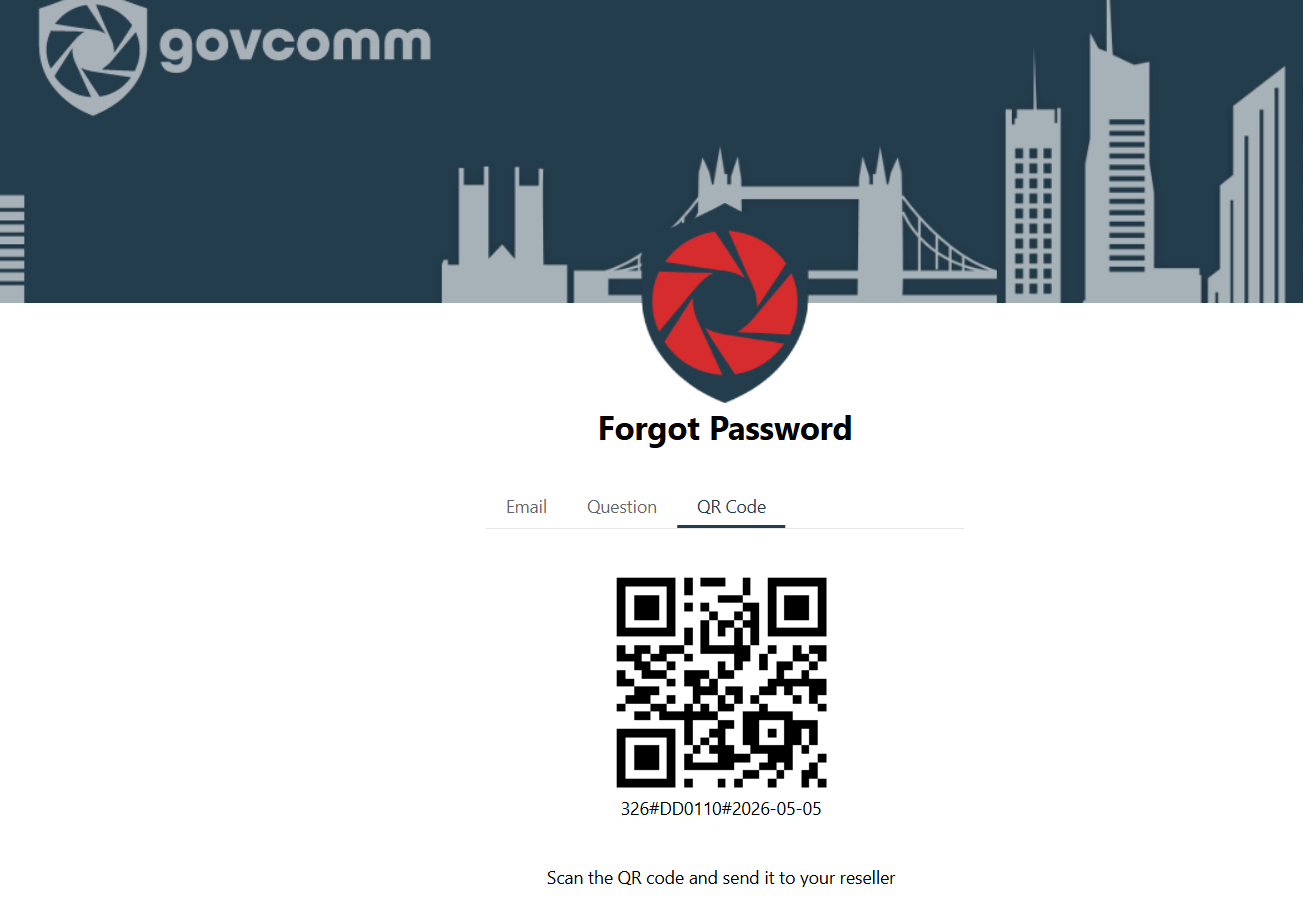
- QR code
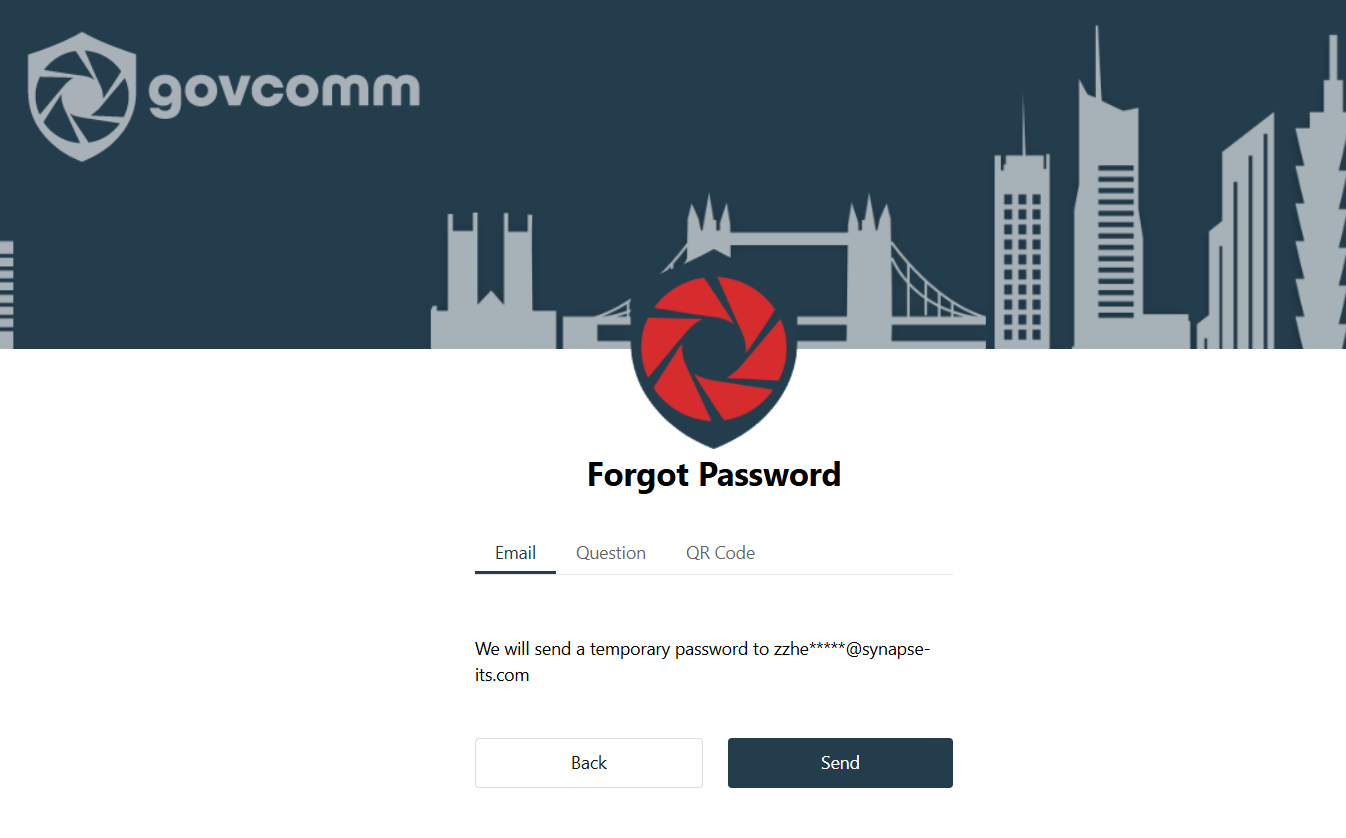
- Receive an Email with Temporary Password (Recommended Method)
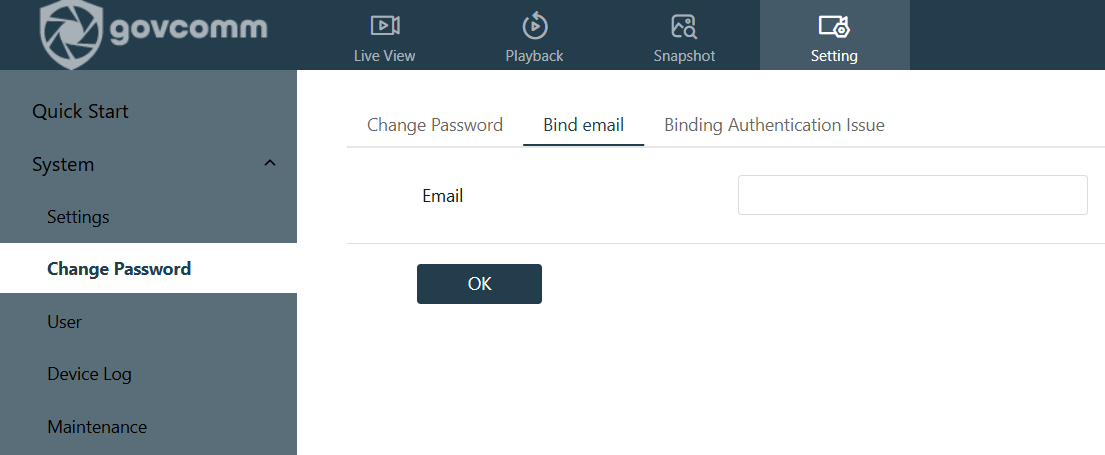
To enable password recovery through email:
- Navigate to Settings → System → Change Password → Bind Email.
- Enter and bind the desired email address.
- If the password is forgotten, a temporary password can be sent to the registered email address.
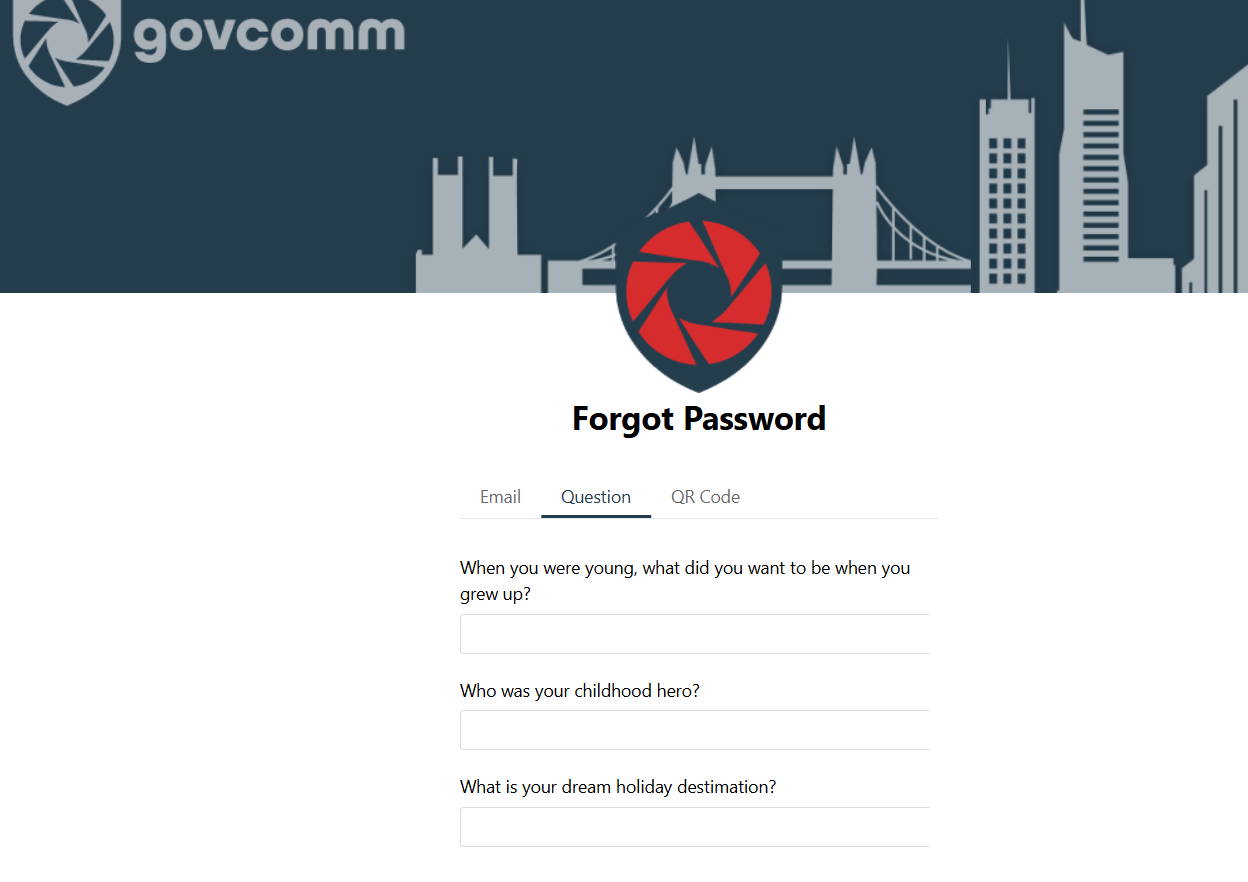
- Answering Security Questions
To enable password recovery using security questions:
- Navigate to Settings → System → Change Password → Binding Authentication Issue.
- Set up the three security questions and provide the required answers.
- If the password is forgotten, answer the configured security questions to recover access.
- QR Code Scan (Default Method)
The default password recovery method is through a QR code scan. Please contact GovComm Technical Support at 305-937-2000 or techsupport@synapse-its.com and provide the QR code displayed on the camera interface. Our technical support team will assist with retrieving or resetting the password.