
How do I prevent my camera from reverting its multicast IP address after rebooting?
This article discusses a firmware update required to prevent the camera's multicast IP address from reverting to default after a reboot or power cycle.
Product applicability
The following products are discussed in this article:
- WWVDS Cameras:
- GC-THB-12/25
- GC-THB-6/19
- GC-THB-6/13
To prevent the multicast IP from reverting to factory default after a reboot, please follow the steps below:
- Navigate to Setup —> General to check current firmware version build date. Download and export the corresponding firmware file that matches your build date:
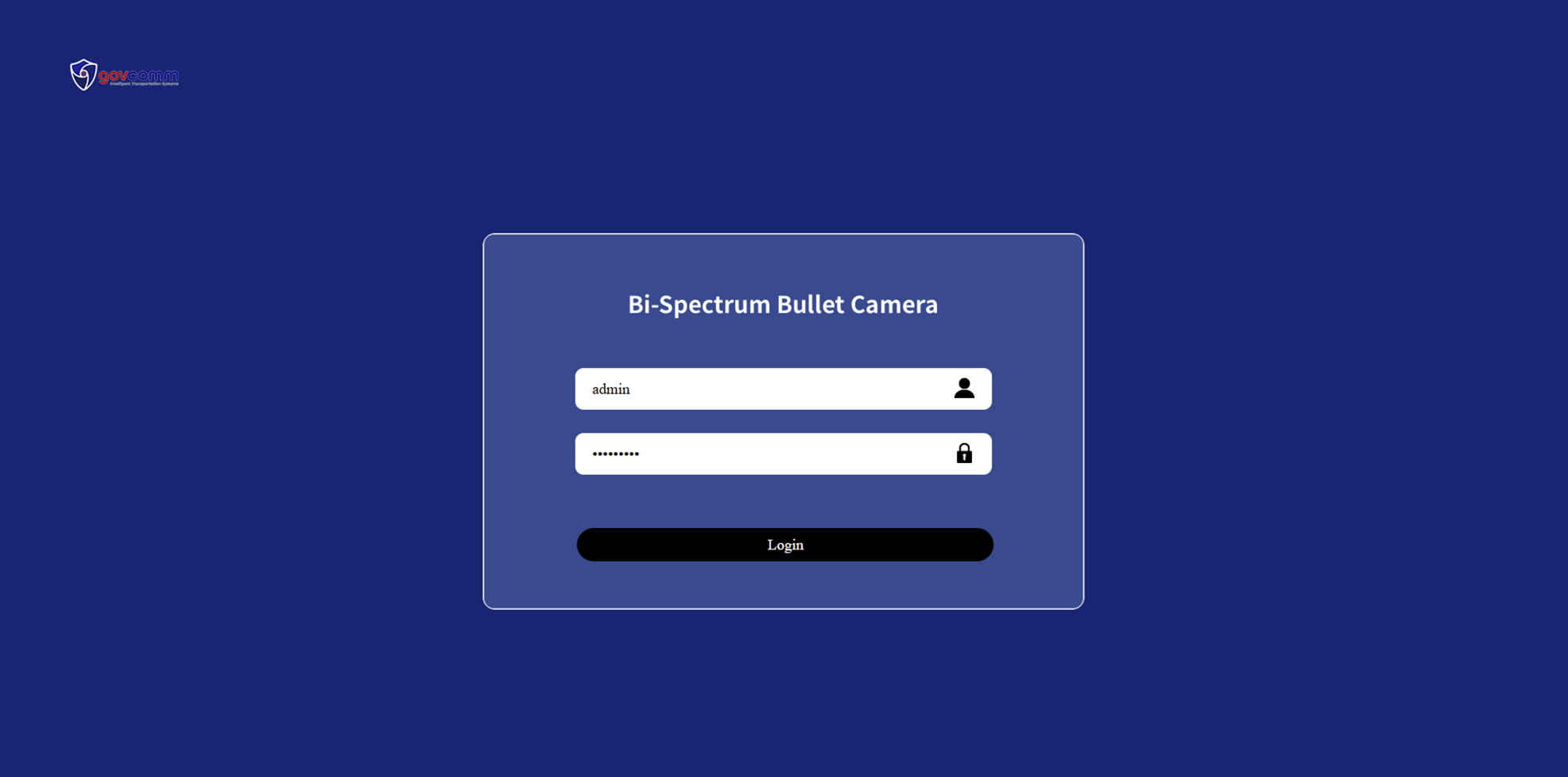
- Log into the camera’s web interface.
- Enter your username and password.
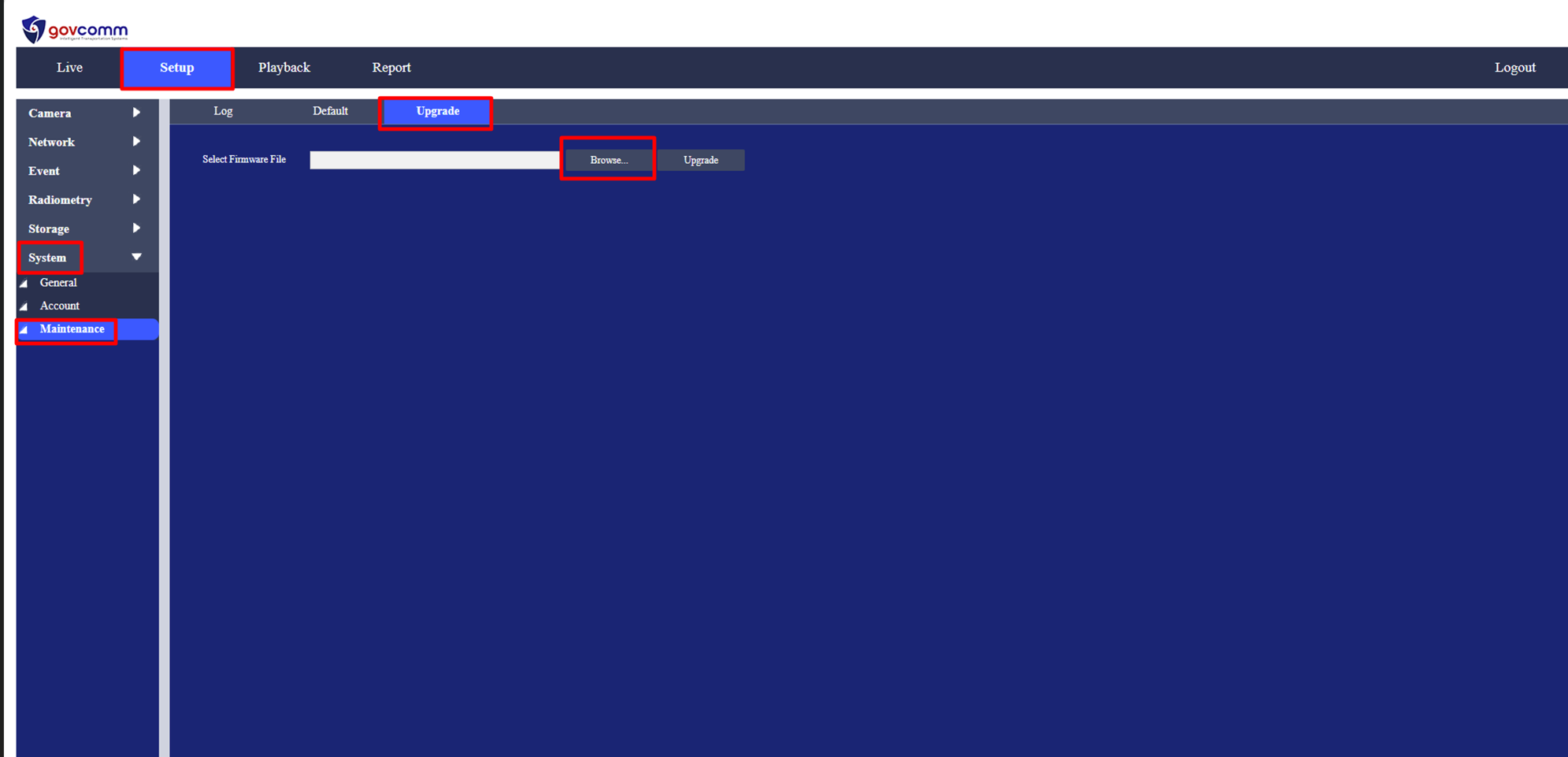
- Navigate to Setup —> System —> Maintenance —> Upgrade.
- Click Browse and select the firmware bin file exported in step 1.
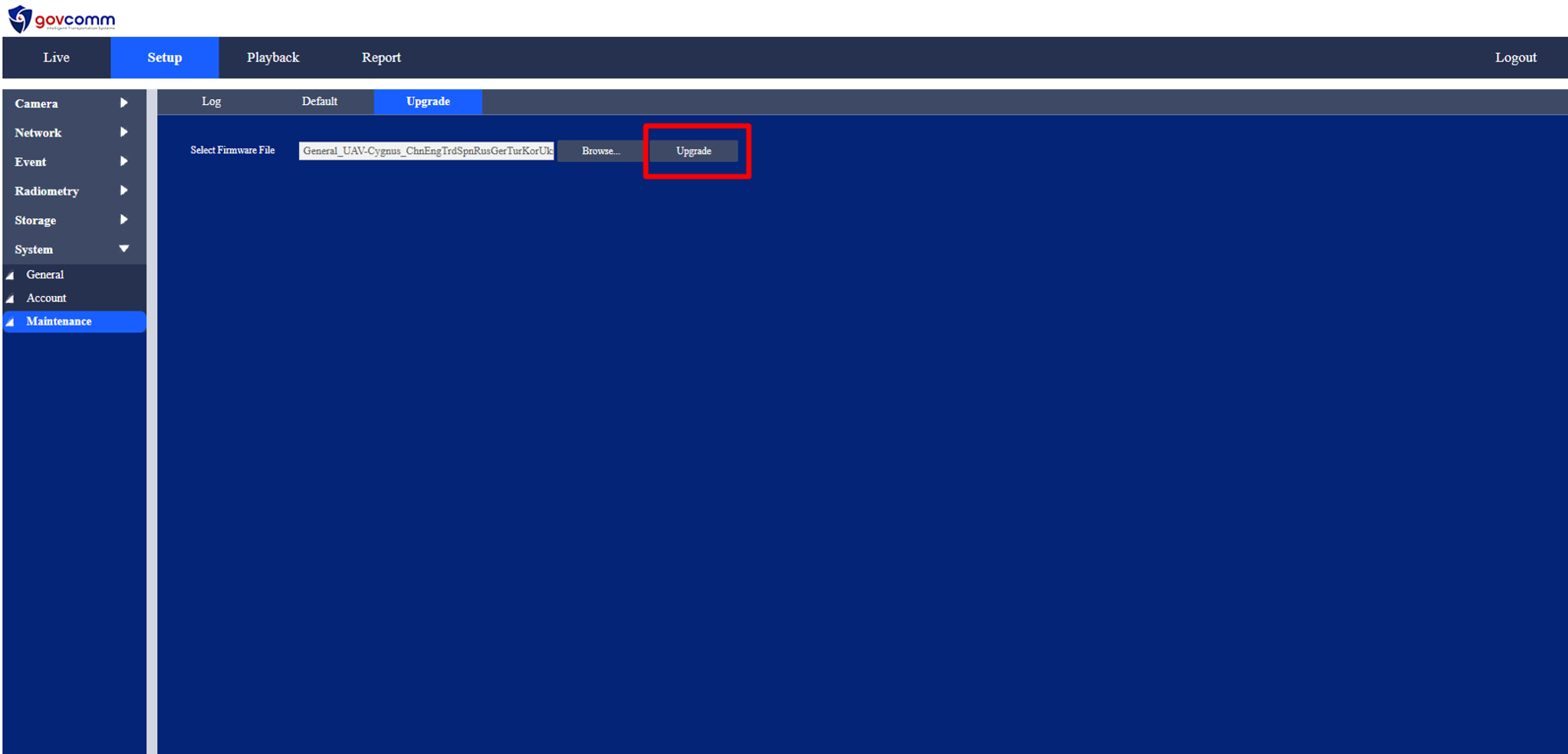
- Click Upgrade and wait for the firmware update to complete.
- Once the update is complete, the camera will automatically reboot.
- After the reboot, log back into the camera’s web interface and verify whether the multicast issue has been resolved.
- Configure the desired multicast IP address and port, then click Save.
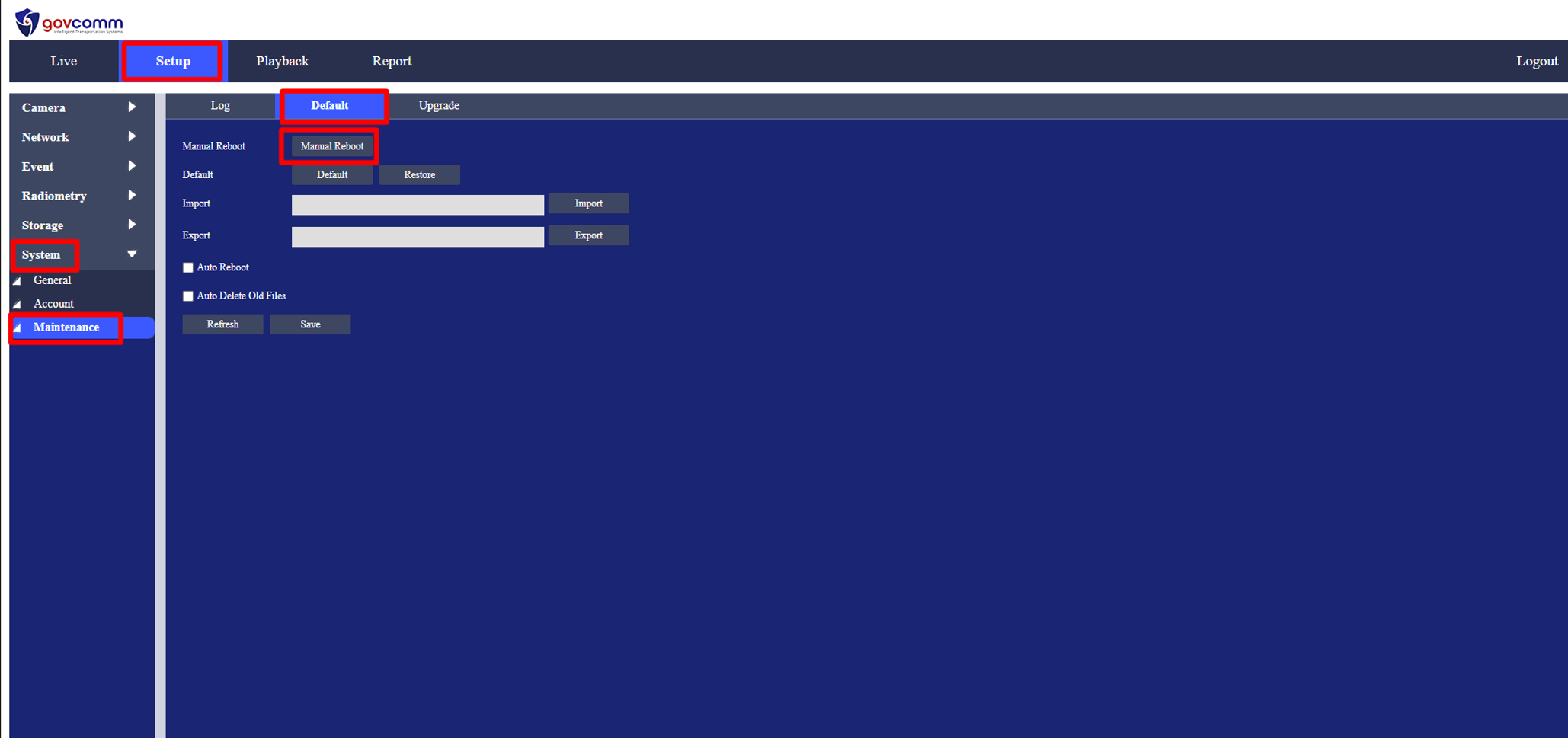
- Navigate to Setup —> System —> Maintenance. Under the Default tab, select Manual Reboot, then reboot the camera once more.
- When the login page appears, login and confirm that the multicast IP address has remained unchanged.
|
|
|
|
|
|
|
|
Previous firmware versions:
- 1.024.R Build Date 2024-01-22
- 1.000.R Build Date 2024-04-22
Updated firmware = 1.000.T Build Date 2026-04-30